Monday, 15 April 2019

What is Password Manager? Good or Bad? What are the best password managers across platforms?


What is Password Manager? Good or Bad? What are the best password managers across platforms?

With the revolutionary increase in the number of internet-user and variety of websites , we sure have multiple accounts to manage simultaneously.

While registering in different websites , we tend to carelessly use the same passwords or lightly modified passwords as  we are afraid of forgetting them altogether. But this is a dangerous practice as it jeopardizes your entire online security. But at the same time it is very hard to memorize all the unique and critical passwords for each and every online account. Don't worry ! As there is a very easy solution for this seemingly critical problem.

The solution is Password Manager.

What is password manager?

It's a tool which enables you to  remember only one strong master password to log into  all the accounts.
It is like a locker which stores all the passwords of your different accounts and encrypts it and provides you with one long and strong master password. It alsobprovides the feature of auto-fill .

So you only need to memorize only this master password to safely log into the accounts. It also has the feature of generating unique passwords which is hard to crack.

For most people, remembering all their passwords is nearly impossible. Having a secure password manager is a solution that will create strong passwords, store them in an encrypted database, and will automatically fill in your username and password on sites that need them, which is more secure than writing them down in a notebook or storing them in a text file.

But we should be very careful about choosing that one strong password, commit it to memory and must  not disclose it to anyone! I suggest you to also enable two-factor authentication in apps and sites which allow them. While logging into a site or an app it will send you a code on your registered mobile no. and you have to enter that code for logging in. As a result if somehow your master password is hacked, they will still not be able to do any damage .It will add an extra layer of protection.

Therefore, we need to use the password manager judiciously and it will make life a lot easier for you..


In this article, I will also present to you the Top 6 password managers that you can use for free.

1. LastPass:-

 • Store usernames and passwords for all of your online accounts securely in your LastPass encrypted vault.

• For Android Oreo and future OS releases, LastPass will automatically save usernames and passwords to the vault as you visit each site and app.

• Passwords will automatically fill in for you as you visit sites and apps, so you never need to remember them again. Only remember your LastPass master password and forget the rest.

• With free syncing, anything you save on one device is instantly available on all other devices.

• Securely store information like credit card numbers and health insurance cards in the encrypted vault.

• Log in with your fingerprint for simple, secure access to everything in LastPass.

• Safely and conveniently share passwords with others, such as the cable login or WiFi password.

• Create secure passwords in one click with the built-in password generator.

• Multi-factor authentication secures your password vault to add a second layer of protection on your account.

2. Dashlane :-

Dashlane simplifies and secures your digital identity—all your personal information that lives online.

• Securely store passwords, secure notes, payments, personal info, IDs, and more in your encrypted vault.

• Instantly autofill forms and payment info using our mobile browser.

• Replace weak passwords in seconds using our Password Generator.

• Monitor your Password Health in our new Identity Dashboard.

• With Dark Web Monitoring, get instant security alerts for each email account you add in Dashlane.

• Use Inbox Security Scan to scan your email inbox and find all the accounts you've created, analyze their security, and save them in Dashlane.

3. RoboForm :-

• Automatically fill in passwords in apps and sites visited using Chrome or other browsers.

• AutoSave passwords directly within Chrome and supported apps, starting with Android 8.

• Keep all your passwords in one secure location.

• Security Center finds your weak, re-used, or duplicate passwords.

• Securely store and edit credit cards, bank accounts, or any other personal information.

• AutoFill long checkout forms with one tap.

• Store license keys, wi-fi passwords, or any other important information using Safenotes.

4. Sticky Password :-

PASSWORD MANAGER:-

• Remembers all your passwords and types them for you as you browse.

• Keeps all your logins and credentials ready for use and absolutely secure.

• You'll need to remember only one password — your master password to unlock the app.

• Alternatively, use your fingerprint or PIN code to unlock the app.

• World's leading security — AES-256 encryption.

• Enhanced two-factor authentication.

PASSWORD GENERATOR:-

• Generates passwords for your accounts that nobody will crack.

• Sticky also identifies weak, old and reused passwords in your existing accounts.

DIGITAL WALLET:-

• Keep your credit card numbers in the super secured vault that only you can access.

SECURE NOTES:-

• Secure any text you want with AES-256 encryption.


SECURE SHARING:-

• Share password with others. Securely.

SYNCHRONIZATION & BACKUP:-

• Sync all your passwords and credentials to all your devices. Access them anywhere.

• Secure cloud backup of all your encrypted data. Only if you want it.

5. KeePass2android :-

 • read/write support for .kdbx (KeePass 2.x) files

 • integrates with nearly every Android browser (see below)

• QuickUnlock: Unlock your database once with your full password, re-open it by typing just a few characters (see below)

• Access files from the cloud or the web (Dropbox, Google Drive, SkyDrive, FTP, WebDAV). You can use "Keepass2Android Offline" if you don't need this feature.

• Integrated Soft-Keyboard: Switch to this keyboard for entering user credentials.

• The application is locked after the time specified in the settings.

 6. Norton Password Manager :-

FEATURES:-

✔ Helps securely store your passwords in an encrypted vault that only you can access.

✔ Built-in browser stores and helps fill-in your information.

✔ Saves addresses and credit cards for faster online checkout.

✔ Helps you create complex passwords with a built-in password generator.

✔ Stores frequent flyer numbers and other password protected notes.

✔ Secure mobile PIN lets you access your vault even faster from your Android devices.

✔ Helps prevent phishing and malicious sites from capturing your keystrokes.

After initial login, your passwords and other data are available even when you’re offline.


These are the best free password managers for Windows, Mac, Linux, Android and iOS.

I hope you liked the article and if it indeed proved useful don't forget to share it with your friends and relatives so that they too can be get benefitted from it.

Thanks!

Friday, 5 April 2019

How to stay safe online?


•  How to stay safe online?

           We use our smartphones extensively in our daily  lives in almost all the things that we do. Be it surfing the web for various information , to connect through social media or banking , there are things that are extremely important and personal and the revelation of which can endanger our very lives as there are no dearth of traps and ensnares in the online world. So here are some ways , abiding which you can truly protect yourselves in the online space.


 1.  Use a lock ( Pin/pattern/fingerprint/face) :- 

Though it's a basic thing to do, you will be amazed to find that so many people even now don't use any lock as they want to avoid that  little hassle. But if they lose their phones their entire data finds itself  in the stranger's hands and can be used for any foul purpose, damaging your personal , economical and social life !


 2. Review App Permissions:-

While downloading apps from the play store, we often tend to neglect what permissions the apps are demanding for and carelessly accept to download it.
From time to time we should review if the permission wanted by an app is really required or else you should not allow it.

Example- There may be a music player which is asking permission for contacts, camera  etc. but apparently these permissions are not really required, so we should turn these permissions off as they may spying in your personal information!


 3. Download from official sources :-

Only download apps from official source, such as Google Play for Android, Appstore for iOS based devices.

 Don't forget to enable Google play protect which scans apps in the background and removes any suspicious apps.

Another important thing to do is to go to the settings menu and find security. Then go to the 'unknown sources' option and turn that off. Now, even if you accidentally downloaded any apk file from sources other than the Google play appstore , it will block the installation in that device .

 4. Choose strong Passwords :-

Google account is very crucial as it's linked with the various apps we use. So from time to time we should  do a security check up of our account linked with the smartphone or any other smart devices .  Sometimes we tend to ignore it and use very simple and hackable passwords such as '123456', your name , birthday etc., or same passwords for multiple accounts , which leaves our data unprotected and can be used by others to play foul on you. So it's very important to use a strong, unique passwords which contain upper case, lower case, alphabets and numbers. In case you’re afraid you might forget all the different passwords, use password managing software to help you keep track of them all.

 5.  Fake news :-

We see and hear a lot of things on the internet and think them all to be true but many of it may not be absolutely true . They might be a fake news or a media . So we should be more careful about believing and sharing things with people on the internet. In recent times a lot of fake news have gone viral through WhatsApp and other such social sites as a result of thoughtless sharing . As netizens we should be more responsible about what we share to others which in turn protects us from online fraud.

 6.  Secure websites :-

 So many of us believe that we have no such valuable data or nothing to hide which in turn sacrifices our internet protection and hackers can easily get access to your contacts, call logs, media files , valuable documents.

So we should change this attitude and consider only visiting safe sites i.e. sites which always have " https"  in the url bar.
You can use a plug-in called "Https Everywhere" to automatically encrypts all the sites you visit.

 7.  Messaging Apps -

 Only use messaging apps which encrypts your messages and therefore not easy to hack  such as WhatsApp,Facebook messenger, Telegram etc.

 8.  Conversations over the phone :-

Any phone call can easily be tapped and it does not happen only in suspense movies!

Use a special app called 'Eagle Security' that track and store the location of all cell towers, or “bases” or cell towers.
If it notices some "base" moving about the city or the signal disappears from time to time it marks it as suspicious and notifies the owner of the phone.!

9. Open Wi-fi zones : -

Sometimes we find the services of free wi-fi zones and tend to use it without much thinking, which can be very risky.

You should use the services of free vpn providers, like VPNbook or Freevpn which encrypts all the traffic you are using through the  wi-fi. You can also install the browser TOR. When configured correctly, it won’t let anyone know where or who you are.


10. Adwares :-

Adwares comes  often disguised as seemingly harmless advertisements which can get access to your browser history to send you more targeted ads, track your location, and even disable your antivirus! To avoid all that mess, it’s better to install ad blocking on your computer and other smart devices.

I hope you will be benefitted from this article and I will be really grateful if you share this with everyone you know to appreciate the hard work. Keep visiting my site for more such informative articles..

Thanks!

Wednesday, 27 March 2019

What sensors do we have in our Smartphones? What are their use?


What sensors do we have in our Smartphones? What are their use?


Nowadays , a smartphone comes with various types of sensors such as  Gyroscope, Accelerometer Sensor, Proximity Sensor, Barometer Sensor, Magnetometer Sensor ,Pedometer Sensor, Light Sensors, Thermometer, Biometrics sensor etc. to give us multiple smart features.

Now to a newbie user, it is very easy to get confused about all these as they don't know what purposes these sensors serve .

But there is no need to be worried ! This article covers all the info  you need to know about sensors. So keep reading!

 1.  Proximity Sensor :-

Every smartphone has this sensor. Whenever you make or receive a call , this sensor gets turned on and when you put your phone to your ear , it turns the screen off and whenever you remove it from your ear, the screen gets turned on.. A very essential feature.


There are other apps like wave music and ....... which make use of this in unique ways.

 2. Accelerometer :-

To describe it in simple terms , this sensors renders the orientation of your device. It means when you turn the 'Auto-rotation' option in your notification panel, it rotates the screen according to the way you hold your phone, be it in Portrait or vertical mode and Landscape or horizontal mode in order to provide you the best view of your choice.


 3. Gyroscope. :-

It's a sensor designed to measure angular velocity. In simple terms , like the Accelerometer it determines the orientation,the movement of your device . It's like the Accelerometer sensor but it's more advanced and accurate.
Here we can take the example of a car racing game where you have to change your device's direction frequently from right to left and vice-versa to move your car. It becomes possible only because of this sensor.


 4. Light sensor:-

Another important sensor of our smartphones. Whenever we turn our " Auto-brightness " on , in the display settings, it lowers our screen's brightness in low light conditions such as in our homes so that it doesn't hurt our eyes and whenever we go out in the sunlight, the screen's brightness gets increased automatically, so that we can get a proper view in the bright sunlight.


 5. Magnetometer :-

This sensor enables a device to determine the direction i.e. acts as a Compass.

Sometimes in a new place we wonder which side is north or east or west or south . In this sort of situations this feature if your comes in really handy.


 6. Barometer :-

 Tracks the altitude or the distance from the sea-level of your device which in turn helps to determine the exact location of the device. It is also used to measure air pressure and any sudden weather changes.


7. Biometrics sensor :-

This  is one of the most important sensor that your phone should have as it is related intrinsically to the safety and security of you and your device . All the lock and unlock mechanisms like Fingerprint impression, Face unlock , Iris scanner except pin and patterns, is based on this sensor to improve the security of our devices on the go.


 8. Thermometer sensor:-

As is evident from the name, this sensor measures the temperature of your device as well as of outside .


 9. Pedometer sensor :-

If you have this sensor your phone , it will serve the purpose of accurately counting your steps when you walk or run and therefore can be an aid in your quest for fitness.

Thanks for reading! I hope this article cleared all your doubts about the sensors in our Smartphones and if you really got to know something new, share this with everyone you know as more views will motivate me to write more such informative articles for you!

Friday, 22 March 2019

What is screen pinning? How to use it on any android phone?


What is screen pinning? How to use it on any android phone?


With the evolution of smartphone gaming, most of the people spend a lot of time playing games on their phones. Are you a gamer or heavy user of smartphone? Then this feature of screen pinning will be  handy for you.

 First of all, let's discuss what's screen pinning and then we will try to explain how can make use of this smart feature that your phone has.

'Screen pinning' , the term is quite self-explanatory. It means pinning a particular screen or window or an app through which you can only access that screen or app and all the other buttons and apps will be inaccessible until you unpin that app or game or window..

While playing a game or using an app sometimes call or notification comes and intervenes the gameplay or an important job.

Sometimes while using an application we mistakenly touch home or back button which breaks the rhythm of the gameplay or the important job we might be doing at that moment.


Sometimes while we have to give our phones to a child or someone else as they want to play a game or use a certain app, screen pinning ensures that they can only play the game or use that app and can't use anything else even if they want which protects your privacy.

Thus this feature really comes handy in these sort of situations.

This feature is available from Android's 'Lollipop' version and upwards, but still some phones may not have this feature. Nothing can be done about that!

Those who have it can use it to enjoy a smarter gaming experience and distraction-free work, all without sacrificing your privacy and security..


How to access and make use of it?

First , head to settings and then tap on security. There you can find screen pinning option. Next you will have the option to enable it.

After enabling, you have to select the app or the screen you want to pin and then touch the overview button. Next you have to swipe up and then you can notice a small pin , then touching it will enable it.

When you want to unpin you have to press and hold the overview button for a while and then it will be unpinned.

So, that's it for now. Thanks for reading. I hope you found this article helpful ! For more such info, keep visiting the site and share as it will motivate me to bring out more articles for you.

Wednesday, 20 March 2019


What should be done before you sell your phone ?


As smartphones have become a part of our daily lives, we store a lot of personal valuable data in it to get it handy .So while selling this piece of our day-to-day lifestyle , we must be very careful.

Here are few points to consider before you sell your phone :-

 1.  While selling it's not enough to only factory reset your phone once as the data can be easily restored with a recovery software. It only deletes the addresses of the files and thinks and shows  that it's completely free. But surprisingly it's not. The data can be recovered and all your  personal data can be stolen which can jeopardize your life afterwards!

2. We should do a double format before selling your phone.

First , remove all your accounts from your phone, such as , Facebook, Twitter ,Instagram, Pinterest ,Google plus etc.
Then encrypt your phone which can be done from the settings menu and then format it. Now load some random data which has no connection with you such as music , videos etc. in your device and then format it once again. So that one can never recover your original personal data and you can enjoy a peace of mind!

3. There's a software called Dr. Fone , available for both android and iOS which erases all the data from your phone and not be recovered by any software. You can try this as well..

 4.  Don't forget to remove your sim card and memory cards before formatting !

I hope you liked the article and if it indeed proved useful don't forget to share it with your friends and relatives so that they too can be get benefitted from it.
If you have any questions you are welcome to comment below..

Sunday, 17 March 2019

Stock Android vs Android One vs Android Go :-

Stock Android vs Android One vs Android Go :-


Everyone is using a Smartphone nowadays which are popularly based on Android or iOS.

Now there are phones which are based on Stock android which means there will be neither  bloatwares nor useless, pre-installed third-party apps on your device , helping it deliver a smooth and lag-free performance for a longer period. Stock android can be seen in Google's flagship devices like Pixel phones , Nexus devices, Moto devices etc.


There are no skin on top of it like MI phones or Honor's 'Emui'.
Phones having stock android  are the first receivers of guaranteed android updates from Google itself as they are the easiest to apply such ota updates and are most secured. These are the pure android phones and can be referred as the benchmark of Android.

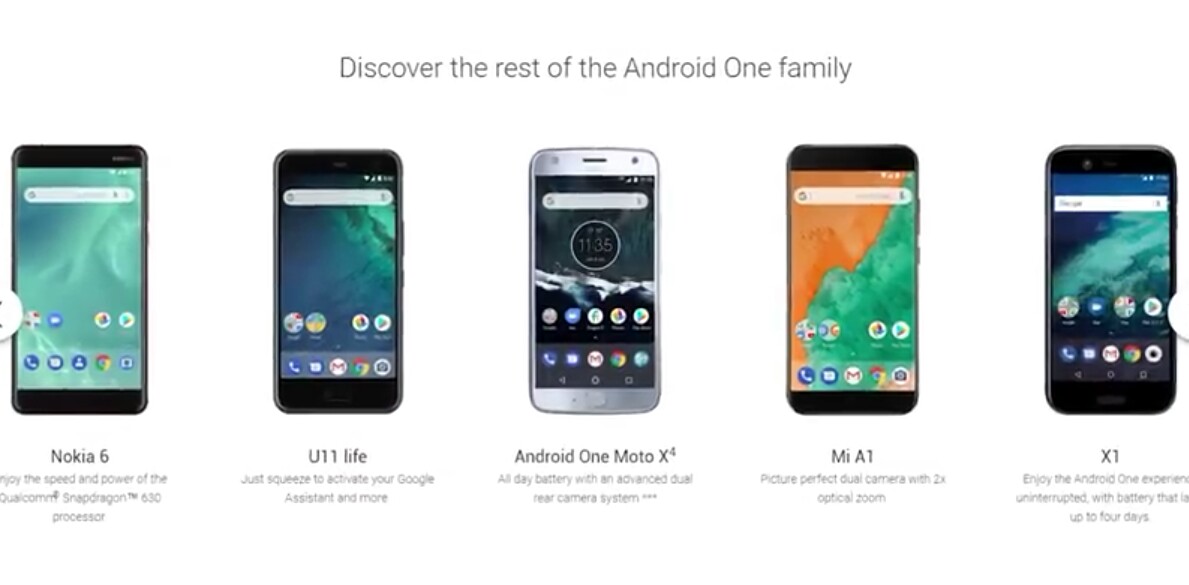
Now we also come across devices which are known as Android One phones. This programme was initially meant for low-end devices and introduced in India but they can now be seen in mid-range or higher mid-range phones as well.

They are an amalgamation of stock android and a few customisations done by the manufacturer. It means it neither has an over-the-top UI of the manufacturer like MIUI or EMUI nor it's a stock android like in Nexus, Pixel, Moto devices . It's close to stock but in phones of different companies like Samsung, Mi ,Honor etc , with a few twist which is actually liked by many instead of a plain and clear stock.


These phones receive android
updates for 2 years and security patch upgrades directly from Google for atleast 3 years.

Android Go programme actually replaces the original Android One programme which is a toned down version of Android, designed for low-end entry-level phones to give smooth performance even in less powerful devices.


Here you can find less pre-installed apps and lot of original apps are replaced by special 'go' apps like YouTube Go, Gmail Go , Maps Go etc.


The biggest difference between Stock android , Android One and Android go is that unlike the Stock and One, it doesn't come directly from Google Inc. Google gives it to an OEM like Nokia and then Nokia releases it and is responsible for further upgrades and updates . As a result, you are not really guaranteed to get updates or timely updates.

There are phones which does not belong to any of these 3 categories. They say that they come with stock android but with their own UI like Asus's  Zen UI , Vivo's  Funtouch ,  Samsung's Touchwiz or the latest Experience 10 , Mi 's MIUI etc. in which they include some of their customisations and a few apps.


In a nutshell , every user's need is taken care of and they can choose  according to their taste and need.

I hope you liked the article and if it indeed proved useful don't forget to share it with your friends and relatives so that they too can be get benefitted from it.
If you have any questions you are welcome to comment below..

Saturday, 9 March 2019

What are the differences among DDR/DDR 2/DDR 3/ DDR 4 Ram? What is the best choice among them?


Q. What are the differences among DDR/DDR 2/DDR 3/ DDR 4 Ram? What is the best choice among them?

While going to buy a laptop or a desktop we are given the choice of various configurations including various types of Ram and we often get confused, not having sufficient knowledge.

Well, in this article , I am going to compare DDR1 vs DDR2 vs DDR3 vs DDR4 and mention difference between DDR1, DDR2, DDR3 and DDR4 SDRAM memory types. I will also explain the differences between SDR SDRAM and DDR SDRAM types.


Each generation of memory is marked by speed and frequency increases and power consumption decreases. Because computer hardware is all connected and interdependent, this leads to speed increases in other components.

Introduction:

SDRAM stands for Synchronous Dynamic Random Access Memory. As the name suggests it has synchronous behaviour and as a result it synchronizes itself with CPU timing or clock signal. FOr example PC133 SDRAM refers to SDRAM running at the clock signal of 133 MHz. There are two types of SDRAM viz. SDR SDRAM and DDR SDRAM.


Difference between SDR SDRAM and DDR SDRAM :-

SDR SDRAM:-

It is the short form of Single Data Rate SDRAM. In this SDRAM type, same frequency is used for Input/Output operations, bus clock and internal clock. As mentioned above PC133 uses 133 MHz for all these purpose. SDR SDRAM can either read or write one at a time in single clock cycle.

DDR SDRAM:-

It is the short form of Double Data Rate SDRAM. It can transfer data on both the rising edge of the clock as well as falling edge of the clock i.e. doubles the transfer rate without even increasing the clock signal frequency. DDR SDRAM has 2 bit prefetch buffer size which is double of SDR SDRAM. There are various versions of DDR SDRAM viz. DDR1 (or simply DDR), DDR2, DDR3 and DDR4 based on various features as explained below.

DDR1 SDRAM or DDR SDRAM :-

Following are the features of DDR1 SDRAM type:

• It transfers data on rising and falling edge of clock. Hence it has double data transfer rate compare to SDR SDRAM type.

• Clock speed: 133 to 200 MHz

• Prefetch buffer size: 2 bits

• Operating voltage: 2.5V

• Data transfer rate: 266 to 400 MT/s (MegaTransfers per SECond)

• Examples: DDR266, DDR400


DDR2 SDRAM :-

Following are the features of DDR2 SDRAM type:

• It operates external data bus two times faster compare to DDR1 SDRAM type or DDR SDRAM.

• Clock speed: 133 to 200 MHz

• Operating voltage: 1.8 V

• Prefetch buffer size: 4 bits

• Data transfer rate: 533 to 800 MT/s (MegaTransfers per SECond)

• Examples: DDR2 533, DDR2 800


DDR3 SDRAM :-

Following are the features of DDR3 SDRAM type:

• Its power consumption is less compare to previous version i.e. DDR2 which is about 40% less. This is due to use of lower operating voltage of 1.5V compare to DDR and DDR2 SDRAM types.

• Operating voltage: 1.8 V

• Prefetch buffer size: 8 bits

• Data transfer rate: 800 to 1600 MT/s (MegaTransfers per SECond)

• DDR3L-800 , DDR3L-1066 , DDR3L-1333 and DDR3L-1600

• Special functions used: ASR (i.e. Automatic Self Refresh) , SRT (Self Refresh Temperature).


DDR4 SDRAM :-

DDR4 memory is the latest generation of double data-rate random access memory. DDR4 replaces DDR3, which replaced DDR2, which replaced what is now called DDR.

Following are the features of DDR4 SDRAM type:

• It provides further lower operating voltage and faster transfer rate compare to other DDR types.

• Operating voltage: 1.2V

• Data transfer rate: 2133 to 3200 MT/s

• Example: DDR4-2400, Micro Technology Inc.

• It processes four data in a single clock cycle.

• Efficiency: better than DDR3.

• Special functions: DBI (i.e. Data Bus inversion), CRC, CA parity.


In a nutshell, it can be deduced that the latest DDR4 Ram is the fastest and most energy-efficient Memory which provides the smoothest performance till date .

If you found this article useful , showing support by sharing to your friends,family and acquaintances will be much appreciated. Keep visiting the site as I share such articles often..

Thanks and Cheers!

 
biz.